
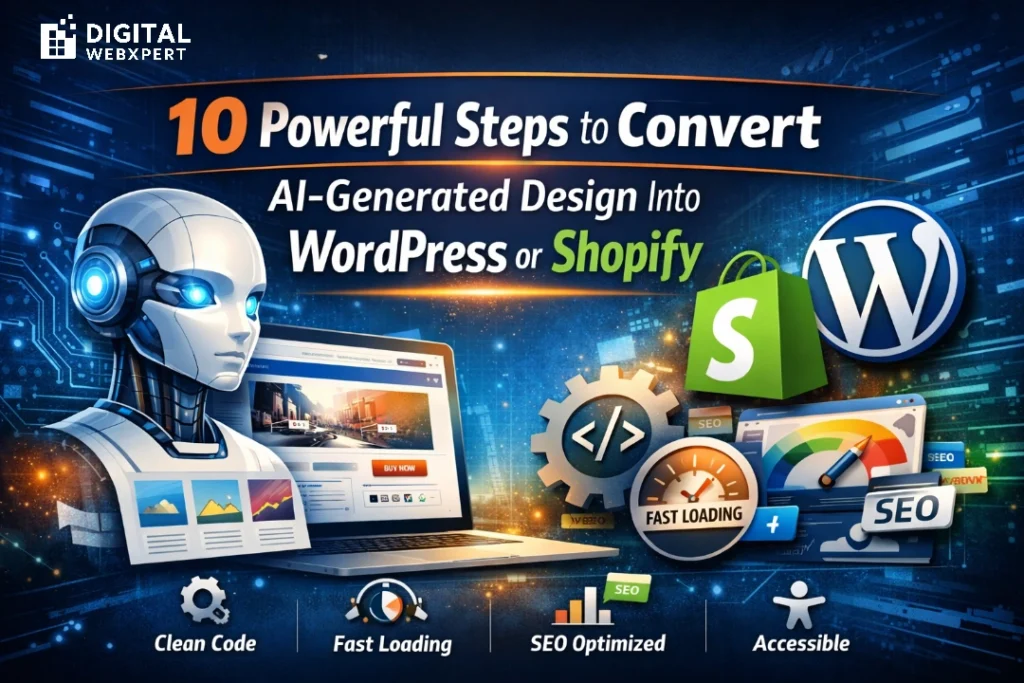
10 Powerful Steps to Convert AI-Generated Design Into WordPress or Shopify
AI tools can generate gorgeous website or store designs in minutes—landing pages, product grids, hero sections, even full “site concepts.”
But turning an AI mockup into a real WordPress or Shopify build is where most projects either shine… or fall apart.
If you’ve ever tried to implement an AI-generated design and ended up with messy spacing, broken mobile layouts, slow load times,
and confusing editor experiences, you’re not alone. The truth is: most AI designs are presentation-perfect, not
production-ready.
In this checklist, you’ll learn how to convert AI-generated design into WordPress or Shopify while keeping the layout responsive,editable, fast, and SEO-friendly.
Recommended internal link:
WordPress vs Webflow vs Shopify (2026)
How to Convert AI-Generated Design Into WordPress or Shopify (What “Ready” Means)
Before you touch code, align on what “ready” means. A design is truly WordPress/Shopify ready when it has:
- Reusable components (not just “pretty pages”)
- Responsive rules (clear behavior at breakpoints)
- Complete UX states (hover, focus, error, empty, loading)
- SEO structure (headings, templates, internal linking plan)
- Performance strategy (image formats, font loading, minimal scripts)
- Accessibility basics (contrast, keyboard navigation, focus visibility)
That’s your standard. Now let’s get you there.
10 Powerful Steps to Convert AI-Generated Design Into WordPress or Shopify
Step 1: Do a “Build Feasibility Audit” Before Anything Else
AI designs often include elements that are costly or fragile in real browsers—especially on mobile. Run a quick feasibility check:
- Is spacing consistent (a system) or random values everywhere?
- Do sections rely on perfect text length (titles never wrap)?
- Are there heavy blurs/filters/shadows that will slow performance?
- Are images assumed to be the same size forever?
- Are “floating” elements positioned in ways that will break on smaller screens?
Goal: Keep the look and feel, but remove anything that will become a long-term maintenance nightmare.
Step 2: Turn the Mockup Into a Mini Design System
This step is the difference between “one-off build” and “scalable theme.” Create a simple set of tokens:
- Typography scale: H1–H6, body, small, button text
- Color tokens: primary, secondary, background, surface, border, success/error
- Spacing scale: 8/12/16/24/32/48/64 (choose one system and stick to it)
- Core UI components: buttons, inputs, cards, badges, alerts
Why it matters in WordPress
A mini design system maps cleanly to Gutenberg styles, reusable patterns, and consistent global styling.
Why it matters in Shopify
The design system becomes theme settings (colors, typography, spacing) so merchants can update without breaking layouts.
Recommended internal link:
AI-Powered Web Design Best Practices
Step 3: Break Pages Into Reusable Components (Not Screenshot Sections)
AI gives you a “page.” Developers need components. Build a component library before building templates.
- Header + navigation
- Hero (headline + CTA + media)
- Trust bar (logos, ratings, guarantees)
- Feature grid
- Testimonials
- Pricing or packages (service sites)
- Product grid + collection grid (Shopify stores)
- Blog cards + article layout (WordPress)
- FAQ accordion
- Footer
Rule: If a pattern appears more than twice, build it as a component. This makes your build faster to produce,
easier to maintain, and consistent across the entire site.
Step 4: Write Responsive Rules Like a Spec (Not a Guess)
AI mockups often show “Desktop” and “Mobile” screens, but rarely define the rules in-between. Document:
- Breakpoints (example: 480, 768, 1024, 1280)
- Grid behavior (3 columns → 2 → 1)
- Section padding (48 desktop → 24 mobile)
- Typography resizing (H1 48px → 34px)
- What stacks, what reorders, what collapses
When you document responsiveness upfront, you avoid the most common cause of “it looks different in production.”
Step 5: Export Assets Correctly (So the Site Loads Fast)
AI designs often hide a performance trap: huge images and messy exports. Use:
- SVG for icons/logos (crisp + lightweight)
- WebP/AVIF for photos (smaller file size)
- Export at realistic dimensions (don’t ship 3000px files for 400px containers)
- Consistent naming (
hero-bg.webp,icon-shipping.svg)
This directly impacts user experience and Core Web Vitals.
External reference:
Google: Core Web Vitals
Step 6: Add UX States (Hover, Focus, Error, Empty, Loading)
AI designs usually show only the “happy path.” Make your conversion complete by defining states:
- Button: default / hover / active / disabled
- Links: hover + focus (visible)
- Forms: default / focus / error / success
- Ecommerce: out-of-stock, low stock, variant unavailable
- Empty: no products, no search results
- Loading: skeletons/spinners (especially for filters)
This is where your site feels “premium” rather than “template.”
Quick reminder: If your goal is to convert AI-generated design into WordPress or Shopify, build reusable components first,
then map them into WordPress blocks/patterns or Shopify sections/blocks.
Step 7: Convert AI-Generated Design Into WordPress or Shopify: WordPress vs Shopify Differences
The same design becomes very different under the hood depending on the platform.
WordPress conversion approach
Best when you want content marketing + SEO at scale, flexible landing pages, and a strong blog + lead generation setup.
Consider a Gutenberg-first build for editor-friendly patterns.
External reference:
WordPress Block Themes
Shopify conversion approach
Best when you want strong merchandising workflows, product/collection templates, and easy editing for non-dev teams.
Build with Online Store 2.0 sections and blocks.
External reference:
Shopify: Templates, Sections & Blocks
Recommended internal link:
Shopify vs WooCommerce Comparison (2025)
Step 8: Map the Design to SEO Structure (Before You Build Templates)
To make your build SEO-ready:
- Use one H1 per page (clear intent)
- Keep headings in order (H2 → H3)
- Create a template plan (service page, blog post, product page, collection page)
- Plan internal links (services → case studies → blog posts → contact)
- Add schema where relevant (Article, HowTo, FAQ, Product)
If you’re using AI for content too, avoid thin pages and repetitive copy—optimize for real user value.
Recommended internal link:
SEO Mistakes Using AI Content (2026)
Step 9: Build With Performance in Mind (Core Web Vitals)
Performance isn’t a “bonus.” It affects conversion, SEO, and user trust. Practical build actions:
- Reserve space for images (prevent layout shifts)
- Lazy-load below-the-fold media
- Use font subsetting + preload only what’s needed
- Keep scripts lean (avoid app/plugin overload)
- Optimize animations (avoid heavy scroll-based effects)
Quick win: Ensure every image has width/height defined (or responsive image handling) to reduce layout shifts.
Step 10: QA Like a Launch Checklist (Not Just “Looks Good”)
A true WordPress/Shopify-ready build passes:
Visual QA
- Desktop + tablet + mobile comparisons
- Spacing consistency (no random padding)
- Typography and button styles consistent everywhere
Functional QA
- Navigation + search
- Forms
- Cart + checkout entry points (Shopify)
- Editable sections/patterns behave correctly in the editor
Accessibility QA
- Contrast is readable
- Keyboard navigation works
- Focus states are visible
- Form labels are clear
SEO QA
- Page titles + meta descriptions exist
- Headings are correct
- Images include descriptive alt text
- Canonicals set appropriately
Common Mistakes (That Make AI Designs Fail in WordPress/Shopify)
- Building pages instead of components (everything becomes custom)
- No responsive rules (mobile breaks in real content)
- Missing states (forms feel broken, UI feels incomplete)
- Huge images (slow load, poor UX)
- No editor strategy (clients can’t update safely)
- App/plugin overload (speed and stability issues)
Fix these, and your AI-to-production workflow becomes dramatically smoother.
FAQ
Is an AI-generated design ready to launch as-is?
Usually not. AI designs often miss responsive rules, accessibility states, performance constraints, and editable content structure needed for WordPress or Shopify.
Should I convert AI designs into a WordPress block theme or classic theme?
If you want modern editing and reusable patterns, a Gutenberg-first approach and block themes are often the best long-term choice.
How do I keep Shopify editable for merchants?
Use Shopify sections and blocks and expose clean theme settings (spacing, colors, layout) so non-developers can update safely.
What’s the fastest way to convert AI UI into a working store?
Start with a component system, then map components to Shopify sections/blocks or WordPress blocks/patterns instead of building page-by-page.
Ready to Convert Your AI Design Into a Real Website or Store?
If you want a team to convert AI-generated design into WordPress or Shopify with clean code, strong Core Web Vitals,
and SEO-ready templates, Digital WebXpert can help.
Contact Digital WebXpert to get a clean, scalable build that doesn’t fall apart after launch. Contact Us